- Your cart is empty
- Continue Shopping

 By
By - 1 year of updates & unlimited domain usage
- Updates will be available within a few days
- Original product with the lowest price ever
- Downloaded from original authors
- Instant delivery with fast downloading speed
- 100% clean and tested code
- Product Version: Blog Designer PRO for WordPress 3.1
Blog Designer PRO for WordPress
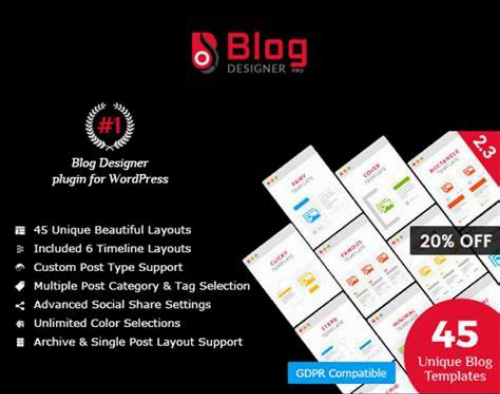
Blog Designer Pro is an effective and user-friendly way to beautify your blog pages on your websites. It’s a very popular plugin for a website’s WordPress blog to attract more clients as well as more blog visitors. Blog Designer makes your blog section more intuitive with no coding skills. It’s very easy to manage for beginners to website developers.
Blog designer plugin bundled with precisely designed 33 templates for various category and we will keep adding more in a future versions.
If you are looking for a category/tag archive design then Blog Designer is the best solution for you that you saw above.
Every single blog template contains number of options to manage your blog style and design like colors, font style, font family, etc.
Where Blog Designer Pro plugin is useful?
Blog Designer plugin useful for all WordPress websites. Below is one small list for which purposes you can start the use of Blog Designer WordPress plugin.
- Blogging Website
- A new section of the website.
- Business & Technology idea sharing
- Your company story (timeline)
- Event summary showcase (timeline)
- My achievements (timeline)
- Author biography (timeline)
- Company new product updates
- Step by step tutorial guideline
- Fashion blog website
- Latest trend blog
- Business & Entrepreneurship Blogs
- NGO website to share news/update
- Personal blog Site
- Portfolio Presentation (Grid)
- Showcase post with slideshow (slider)
- To display different category posts with different design
How to Install/Update WordPress Themes/Plugins manually?
Elementor Template kits installation details are below!
Step 1: Buy the Product and download the zip file.
Note: Some Zip files need to be extracted before uploading.
If you are performing an update, install the latest theme/plugin, and WordPress will automatically replace the older version with a newer version. All your settings and customizations will be the same as before, and nothing will be changed.
Step 2: Go to “Appearance > Themes” If it’s a theme or go to the “Plugins” section if it’s a plugin through your WordPress dashboard.

Step 3: Click on “Add New” button (It’s same on themes and plugins section)

Step 4: Click on “Upload Theme” or you’ll show “Upload plugin” on plugin section

Step 5: Click on “Choose file” and select the ZIP file of that theme/plugin

Step 6: Hit “Install now”

Step 7: It’ll take few seconds to Install your wordpress product

Step 8: Once it’s done, click “Activate,” your WordPress product will be installed manually.
How to Install Elementor Template Kits?
Step 1: Download your kit file and do not unzip it.
Step 2: In WordPress, go to Settings > Permalinks and ensure Post Name is selected, then Save
Step 3: Go to Appearance > Themes > Add New and ensure Hello Elementor is installed and activated.
Step 4: The theme activation will prompt you to install and activate the Elementor Page Builder plugin if it is not already installed. Click Install, then Activate.
Step 5: Go to Elementor > Settings, click the Features tab, and ensure Flexbox Container has a green icon (if not, set it to Active).
Step 6: Go to Plugins > Add New and search for “Envato” and Install and Activate the Envato Elements – Photos & Elementor Templates plugin
Note: If your Kit requires Elementor Pro, you must install it before continuing.
Step 7: Go to Elements > Installed Kits and click Upload Template Kit ZIP File. Your templates should appear.
Step 8: Check for the orange banner at the top of the screen and click Install Requirements to load the kit addons and settings.
That’s it, and you’re ready to begin building your site!
- Imported templates are stored in Elementor under Templates > Saved Templates and must be inserted to a new page in WordPress before customizing.
- Imported blocks, tabs, or slides are stored in Elementor under Templates > Saved Templates and may be duplicated and customized directly.
- Elementor Pro site parts are stored in Elementor under Templates > Theme Builder and are customized directly.